A photo, a cloud copy and a shared message are different jobs
Taking a photo, uploading it to a cloud library and sending it to someone are separate actions. A restriction on automatic backup does not necessarily restrict a messaging app, a social post or a manual upload. Check the apps you actually use.
Start with your own files rather than a generic number of megabytes per photo. Videos, edits, quality settings and the number of items waiting to upload all change the workload. As a simple arithmetic example, 50 files of 4 MB each total 200 MB before any transfer overhead or other activity. That is an illustration, not a measured Google Photos or iCloud consumption rate.
Our travel data budget guide helps you include background activity alongside maps and messages. If you have a small total-data allowance, include any uploads you deliberately plan to make while away from Wi-Fi.
Google Photos on Android: review the mobile backup controls
Open Google Photos, tap your profile picture, then go to Photos settings, Backup and Mobile data usage. Google documents controls for the daily mobile backup limit, video uploads over data and backup while roaming. Read the choices shown on your version and choose restrictions that match your plan.
Check selected device folders too: the upload queue may include more than the camera. The Google instructions linked below describe these Android controls. If you use Google Photos on iPhone, use its iPhone help and the phone’s cellular permissions rather than expecting the Android menu to match.
Changing a backup restriction is separate from disabling data roaming for the travel line. Follow the eSIM order’s roaming instructions so that controlling one app does not accidentally disconnect the whole phone.
On iPhone, use Low Data Mode as a starting point
Apple lets you set Low Data Mode for the mobile connection. With Dual SIM, open Settings, Cellular or Mobile Data and select the relevant line; the exact path can vary with the network and data mode. Check the setting for the travel line rather than assuming the home line’s preference applies.
Apple says Low Data Mode reduces background network use and pauses services including iCloud Photos updates. It also affects other downloads and app behaviour. It is not a guarantee of zero data consumption, especially when you actively use an app.
If Photos says syncing is paused, read the library status before trying to fix it. Apple advises against turning off iCloud Photos as a syncing troubleshooting step. An intentional pause to limit data is different from a broken library. Use our iPhone travel eSIM setup guide if the underlying data line still needs configuration.
Use a short backup routine at the end of the day
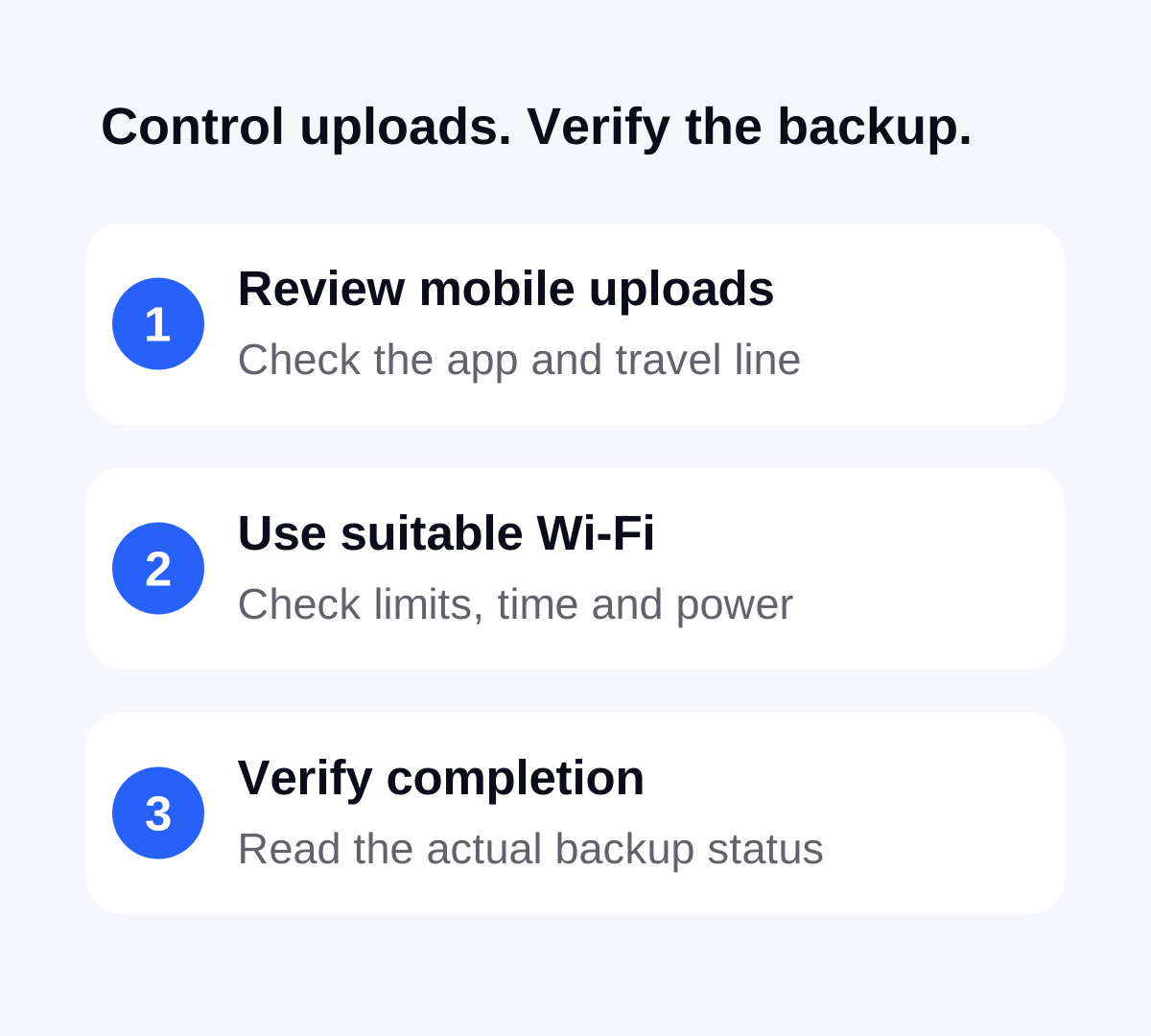
- Connect to a suitable Wi-Fi network and check whether it has an allowance, time limit or other restrictions.
- Open your photo service and read its current upload status. Review any restriction you deliberately enabled for that connection.
- Allow time and power for pending items to upload; do not treat joining Wi-Fi as proof that the queue finished.
- Check the completion status before relying on a cloud copy, then restore your chosen mobile-data restrictions for the next outing.
Google Photos shows backup status in the profile area; Apple Photos shows the library’s sync status. A full cloud account, a paused service or an unfinished queue needs attention even when Wi-Fi works. Keep the originals while you resolve the problem.
A second phone’s hotspot is still someone’s mobile allowance
Moving an upload to a Wi-Fi hotspot can simply move the mobile-data bill to another device. If a companion or laptop shares a phone connection, agree what may upload before starting a large backup. “On Wi-Fi” does not by itself mean the connection is unmetered.
The travel hotspot guide explains how a second device can share an allowance. Save the big upload for an appropriate connection, or budget for it deliberately. A VPN also does not make the uploaded bytes disappear from the underlying data plan; see how VPN use relates to travel data.
Check the plan after changing the settings
Choose and buy your travel plan in the Stellar eSIM app, then use the app to follow the remaining allowance. Review it alongside the activities you have planned for the rest of the trip. If you intentionally need to upload while mobile, allow room for that task instead of relying on a setting to make the transfer free.
Before clearing files or replacing the phone, verify the important photos are available in the intended cloud account. This guide is about choosing an upload connection; it is not an instruction to delete local originals, empty a photo library or turn off cloud sync permanently.
Sources & further reading
Product information and device guidance used for this article. Check your selected plan and exact device before purchase or setup.