Check the plan before you promise a connection
A phone with a hotspot menu and a plan that permits tethering are two separate requirements. Apple says Personal Hotspot needs a carrier plan that includes the service; Google also notes that carriers may limit tethering or charge for it. Check the selected Stellar plan’s hotspot details in the app before buying.
Look at coverage and validity as well as the allowance. A large data amount is not useful if the plan excludes your next stop or expires halfway through your working day. Our guide to choosing a travel eSIM explains those checks. For a route across two countries, compare the exact supported places on the destination and regional plan pages.
Make the phone work before adding the laptop
Choose the intended travel line as the phone’s mobile data SIM and apply the roaming settings supplied with that order. Review automatic data switching and the home line’s roaming settings so the laptop does not unexpectedly use your usual carrier.
Turn Wi-Fi off briefly and load a small page on the phone. That checks the mobile connection itself. If it fails, troubleshoot the phone before changing laptop settings. Keep the eSIM installed while following our no-connection checklist; deleting the profile is not a useful first test.
Connect with a password, then check the result
On iPhone, open Settings and Personal Hotspot, or Cellular then Personal Hotspot, and enable Allow Others to Join. Check the displayed network name and password. On the laptop, select that network in Wi-Fi settings and enter the password. Apple’s linked instructions also cover USB and Bluetooth alternatives.
On Pixel, the documented route is Settings, Network & internet, Hotspot & tethering, then Wi-Fi hotspot. Other Android manufacturers can use different labels. Set a password, enable the hotspot and join it from the laptop. Pixel’s Data Saver can prevent Wi-Fi tethering; check the device guidance if that option will not turn on.
Once connected, open a small page on the laptop. A Wi-Fi connection to the phone alone does not confirm working internet access. Keep the phone nearby and monitor its battery during a longer session.
Give the laptop its own place in your data budget
Start with the phone allowance you would normally need, then add a separate laptop estimate. For example, an assumed 0.3 GB per day for the phone over five days is 1.5 GB. Add an assumed 1 GB for each of two laptop sessions and the total is 3.5 GB. A 25% buffer brings that planning figure to about 4.4 GB. These are arithmetic assumptions to replace with your own usage, not measured consumption rates.
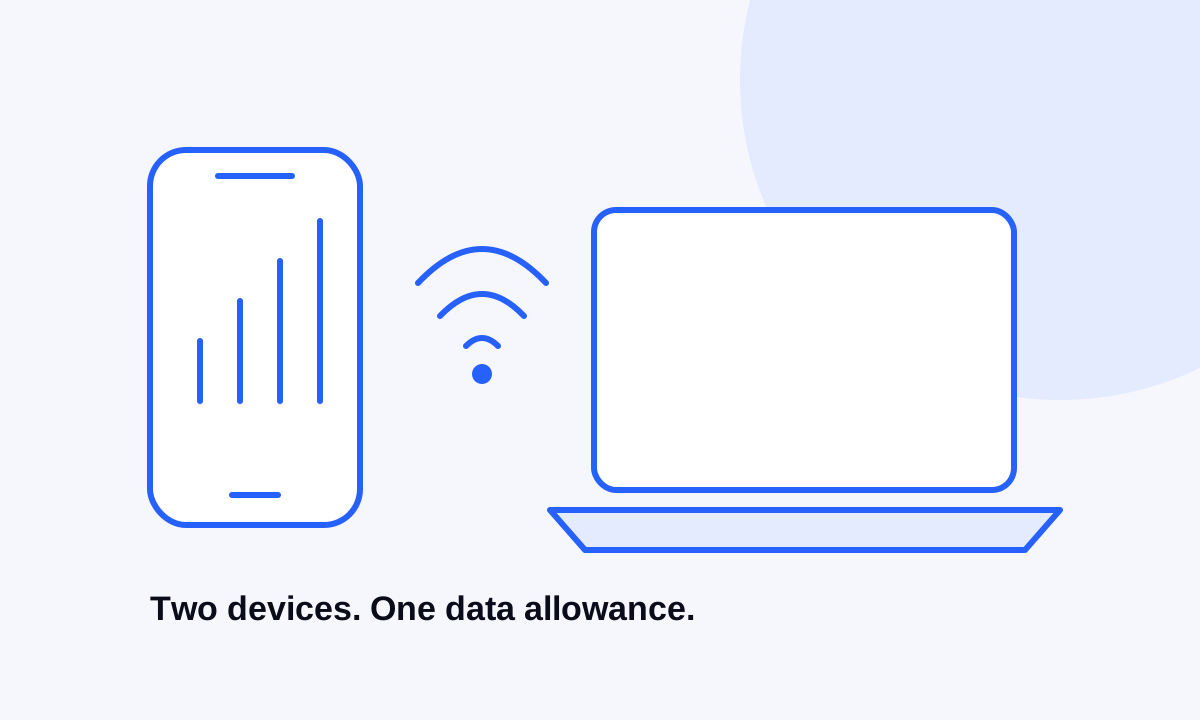
A 5 GB total plan would have 5 GB shared across the phone and tethered devices for its validity period. It would not give each device 5 GB, or replenish 5 GB each day. Daily allowances have different rules; read what happens when their limit is reached. Our travel data budget guide helps you build a baseline.
Stop the quiet downloads before they start
- Pause large cloud-folder synchronisation and photo uploads for the session.
- Check for operating-system, app and game downloads waiting in the background.
- Download meeting files beforehand and choose call settings that fit your allowance.
- Close streaming tabs you are not using.
- Use the laptop’s metered or low-data setting where available, then check individual apps too.
Do not treat a low-data setting as a hard spending limit. Check the remaining allowance in Stellar eSIM before and after the session, allowing for any delay in reported usage. If the balance is falling faster than planned, stop the transfer and find its source before reconnecting.
Have a fallback and close the hotspot afterwards
For an important call, keep a second connection option and a way to contact the other person if the signal changes. A hotspot cannot guarantee reception or a particular speed, even when the plan lists a supported network technology.
Turn off sharing when you finish. If you use a VPN on the phone, do not assume that automatically protects traffic from the tethered laptop; check the VPN’s documented device setup separately. In Stellar eSIM, choose and buy a suitable plan, follow the order instructions and keep an eye on the remaining data throughout the trip.
Sources & further reading
Product information and device guidance used for this article. Check your selected plan and exact device before purchase or setup.