Keep the battery budget separate from the data budget
A percentage in the battery indicator describes something different from the gigabytes left in a plan. Adding data does not recharge the phone, and charging it does not renew an expired allowance. Check both before leaving a reliable connection.
This guide does not measure battery use by eSIM versus physical SIM, or promise extra hours from a particular setting. Your device, apps, network conditions and usage affect the day. Start with the phone’s own battery information and your actual itinerary rather than assuming every traveller gets the same result.
Prepare the parts of the day that cannot wait
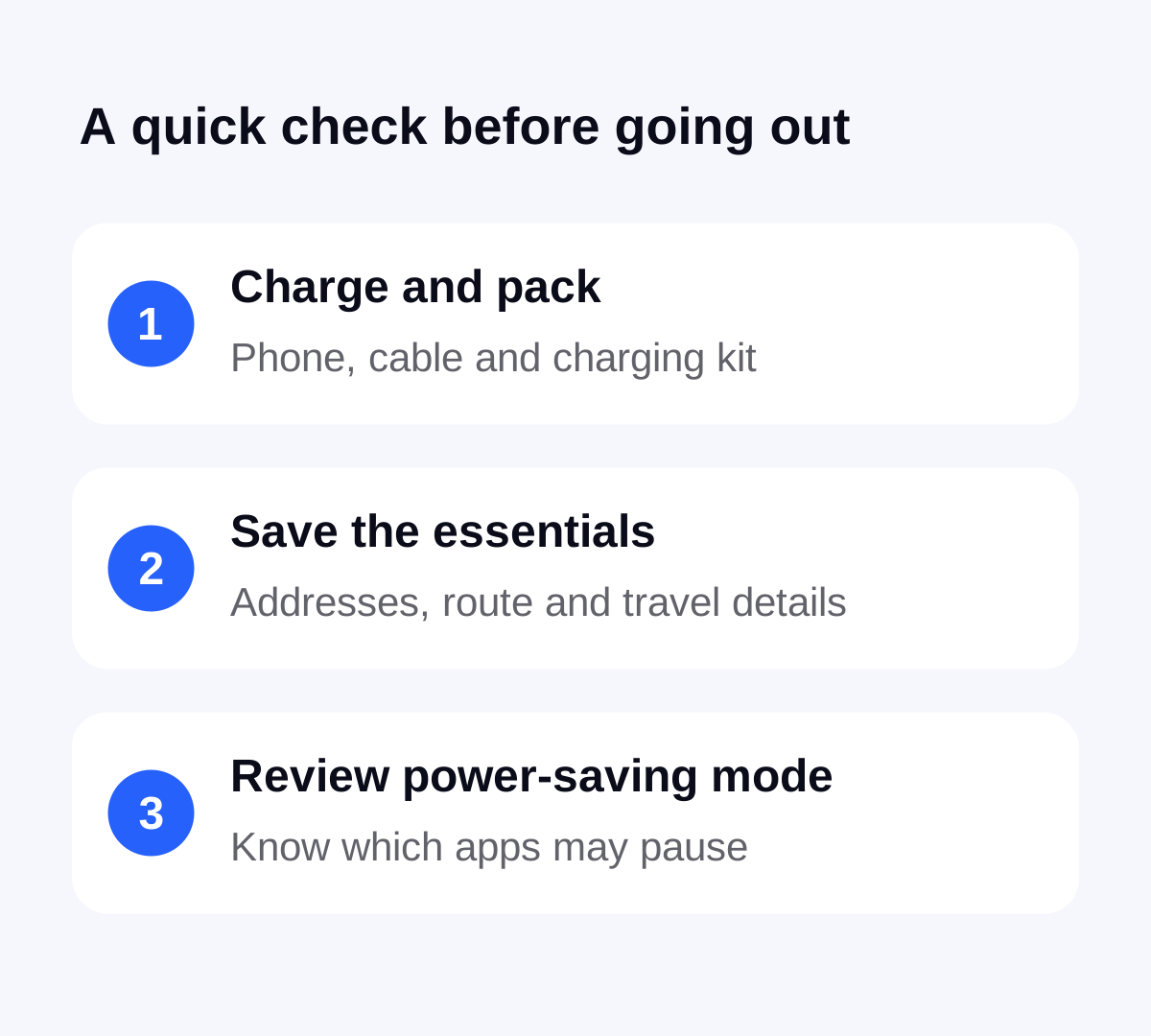
Charge the phone and check that the cable and any portable charger work with it before packing. Keep the accommodation address, return meeting point and important travel details available on the device. Open any ticket you expect to present and check that ticket provider’s offline requirements.
Download the relevant map area over a suitable connection and check what the map app can do offline. Our offline maps guide explains why saving a city does not guarantee every type of navigation. Saved information is a fallback, not a guarantee that every app works without internet or power.
On iPhone, understand Low Power Mode before relying on it
Apple describes Low Power Mode as a way to reduce power use by reducing or disabling some activity. Its documented changes include background app refresh, mail fetching and automatic downloads. The precise settings and effects depend on the device and software version.
Find the mode in the Battery settings and read the options on your phone. Try it before departure with the apps you expect to need. If a background task waits, check whether the power-saving setting explains it before treating the delay as a failed travel connection.
Low Power Mode and Low Data Mode serve different purposes. For controlling uploads specifically, see the photo backup guide. Choosing one setting does not establish that all apps will stop using data.
On Pixel, check the difference between Standard and Extreme
Google documents Standard Battery Saver and, on supported Pixels, Extreme Battery Saver. Extreme mode pauses most apps; paused apps do not send notifications. You can select essential apps to remain available. Review that list before relying on messages or another app during an outing.
Google also says a 5G-capable Pixel may use 4G while Battery Saver is on, depending on the carrier network. A different network label in this situation does not by itself prove the eSIM is faulty. Check the mode and the actual task you need to complete.
Android behaviour differs by manufacturer and version. Follow the instructions for the exact phone rather than applying a Pixel menu path to every Android device. Avoid changing a long list of unrelated settings when one documented power-saving mode explains the behaviour.
Finish the day with two quick checks
When you can recharge, check the apps that were paused and confirm that anything important has updated. If you postponed photo backup, verify its completion rather than assuming connection to Wi-Fi finished it. Google’s battery guidance also encourages reviewing app battery use when investigating drain.
In Stellar eSIM, choose and buy your plan and follow its remaining data during the trip. Check the allowance and expiry separately from the battery. If the connection itself fails after power and settings are checked, use the eSIM troubleshooting guide to investigate that problem.
Sources & further reading
Product information and device guidance used for this article. Check your selected plan and exact device before purchase or setup.